
From Chaos to Command: 5 DeskMemory Superpowers You Haven’t Tried Yet
31 May 2026
So you’ve installed DeskMemory and maybe already experienced the thrill of asking your own notes a question. But this tool has a deeper toolkit — one that turns your scattered digital history into a governed, searchable, AI‑powered command center. Today we’re going beyond the bas
# From Chaos to Command: 5 DeskMemory Superpowers You Havenât Tried Yet
So youâve installed DeskMemory and maybe already experienced the thrill of asking your own notes a question. But this tool has a deeper toolkit â one that turns your scattered digital history into a governed, searchable, AIâpowered command center. Today weâre going beyond the basics. No code, no tech talk, just five features thatâll make you feel like a knowledge wizard â and exactly how to use them.
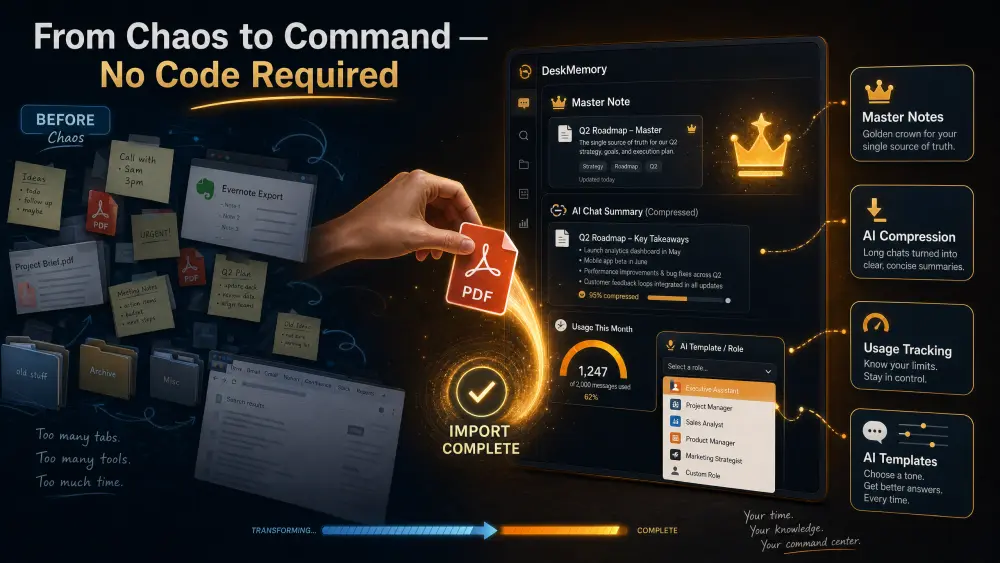
1. OneâClick Migration: Resurrect Your Old Notes (and PDFs!)
Youâve probably got a graveyard of old files: exported Evernote notes, downloaded Markdown from a previous app, PDF recipes, meeting minutes, research papers. DeskMemory gives you two import speeds â pick the one that fits your level of patience.
Bulk Markdown (The âI just want it all in thereâ route) - Open Settings â File Settings. - Click Import Markdown from folderâ¦. - Choose a folder â the app grabs every topâlevel `.md` file and copies it to your vault root. (No perâfile dialogs, no fuss. You can tidy up titles and tags later.)
*Training tip:* Use this when migrating from apps that export Markdown (Obsidian, Bear, Notion). In 30 seconds, youâve transported years of thinking into your new home.
SingleâFile Precision (Especially PDFs!) For oneâatâaâtime control â or to turn a PDF into an editable, searchable note: - Click the Add file⦠button in the sidebar (or just drag a file onto the tree). - For `.md` files, your content opens inside the Save dialog where you can assign a category, tags, and placement. - For PDFs, DeskMemory extracts the text (up to 20 pages) and suggests a title from the filename. Scanned PDFs without a text layer will error â but any PDF you can normally selectâcopy from will work beautifully.
*Training exercise:* Grab that PDF cookbook or whitepaper youâve been meaning to revisit. Drag it in, pick a category (e.g., âRecipesâ), and watch it become a fully searchable vault note â ready for the AI to reference.
Wow moment: Your dusty PDF archive is now part of the same library that your AI instantly understands. No more opening separate readers just to copy a stray paragraph.
2. Master Your Star Notes (With Automatic Versioning)
Some notes are more important than others â your brand voice guide, your resume, the projectâclosure checklist youâve perfected over three jobs.
In DeskMemory, you can mark any note as a Master: - In the Save dialog, set the Type to âMasterâ. - The sidebar gives it a golden crown icon. - When you later update that master (e.g., a new version of your resume) and save it again, the previous one automatically becomes âsupersededâ â a muted crown, still findable but clearly out of date.
You can also retroactively turn any existing note into a master using Edit details⦠in the editor header.
*Training move:* Make your âaboutâmeâ page or your teamâs style guide a master right now. Next month, when you tweak it, watch DeskMemory handle the versioning without you lifting a finger. Thatâs governed knowledge without a wiki.
3. Tame Long AI Chats: Compress & Save Like a Pro
The AI is great, but long brainstorming sessions can turn into a wall of text thatâs hard to review. Two tools keep that in check.
Compress (The âgive me the gistâ button) When your chat has racked up a long tail of backâandâforth, the Compress⦠button lights up (a tiny progress bar shows the tail is long enough â roughly 12,000 characters).
Click it, and DeskMemory: - Preserves your very first message verbatim. - Summarizes everything after that into a single, crisp assistant note â decisions, action items, code snippets, questions.
The original wording of the removed turns is gone, so copy anything priceless first. But the result? A clean thread you can actually reread.
Save to Vault (With a TrainingâWheelsâOff Option) When a chat thread turns into a keeper (a polished proposal, a travel itinerary), hit Save to vaultâ¦. The AI generates a wellâformatted Markdown draft, then opens the same Save dialog you already know. After youâve done this 20 times (the app tracks a âreviewed savesâ counter), you can unlock two accelerants in Settings â Chat Settings â Vault save automation:
- AI prefill â the gateway suggests category and tags before the dialog even opens.
- Silent save â after the gate, the dialog can be skipped entirely; a toast confirms the note is in your vault.
*Training path:* Use Save to vault manually for your first 20 archiveâworthy chats. By the time silent save unlocks, your tagging instincts will be rock solid â and youâll appreciate the oneâclick speed even more.
Wow moment: A lateânight research chat compressed in 5 seconds, saved silently in another 2 â and the next morning youâre already working with the distilled version in your files.
4. Know Exactly What Youâre Using (No Surprise Bills)
DeskMemory makes you a promise: youâll always see how many AI messages you have left. The chat header shows a compact badge â e.g., â72% of plan used · 1,240 leftâ. Hover, and you get a full breakdown:
- Plan allowance (resets each billing period; unused messages donât roll over)
- Message packs (purchased extras that never expire â theyâre your safety net for heavy months)
- Links to upgrade, buy packs, or manage billing on the web dashboard
If something goes wrong, persistent banners appear on every screen: - Payment failed (amber) â âUpdate payment detailsâ - Subscription cancelled (sky) â shows accessâuntil date - Monthly quota reached (red) â âTopâup messages or upgradeâ
Every action opens the web in your browser; the desktop app never stores payment info.
*Training habit:* After your first week, glance at the usage badge to learn your consumption pace. If youâre heading toward a busy month, grab a pack early â it never expires, so itâs pure peace of mind.
5. Template the AIâs Personality (Yes, You Can)
Finally, letâs talk about making the AI work *exactly* the way you want â without reâtyping instructions every time.
Under Settings â Chat Settings, youâll find:
- Prompt templates â define a role (e.g., âfriendly travel agentâ) and an output format (email, report, blog post). Each template can be selected inside a chat, and the instruction preview shows exactly what the AI will receive.
- Tone presets â Default, Concise, Friendly, Professional, Coach, Creative â on a perâchat basis.
- Web search control â Auto (the AI decides), Always, or Off â with a Web sources block in replies.
- Research mode â uses a deeper model and reveals its reasoning in a collapsible block above the final answer.
*Training exercise:* Create a template called âClient Proposalâ with a role of âsenior consultantâ and output format âproposal outline.â Next time you pull up a chat, attach relevant notes, select that template, and watch the AI scaffold a proposal that already sounds like you â and cites your own past wins.
Wow moment: You set this up once. Every team member (if youâre piloting a shared vault) can then use that template and speak in the same brand voice, with zero manual prompting.
The Takeaway
DeskMemory isnât just a smart notepad. Itâs a system that: - Imports your entire history in minutes - Versionâcontrols your most important work without a manual - Tames long conversations into digestible wisdom - Keeps your AI usage honest and transparent - Lets you train the AI to your own voice and workflow
And you never once need a terminal, an API key, or a Markdown course.
Your next move: Pick one feature from this list, try it today, and watch your vault go from âusefulâ to âindispensable.â
*Ready to go deeper? Start my free library â link*