
DeskMemory on Training Wheels: The Features Nobody Tells You About (Until Now)
31 May 2026
You’ve started your vault. You’ve asked the AI a question, felt that little spark when it answered from your own material. Now it’s time to stop being a passenger and start driving.
# DeskMemory on Training Wheels: The Features Nobody Tells You About (Until Now)
Youâve started your vault. Youâve asked the AI a question, felt that little spark when it answered from your own material. Now itâs time to stop being a passenger and start driving.
Most new users discover the obvious stuff â quick capture, chat, search. But DeskMemory hides a whole layer of true mastery just below the surface. These arenât âadvancedâ features in the sense of complexity; theyâre âadvancedâ in the sense of control. Using them feels like unlocking a secret menu.
Letâs walk through the ones that turn a cluttered folder into a personal AI command centre â with zero coding, zero markdown expertise, and plenty of âoh, thatâs neatâ moments.
1. The Quick Open Palette: The Fastest Route to Any Note
You know the drill: you want to get to a note, you scan the sidebar, you scroll⦠no, wait, you search, you scroll more. Not anymore.
Hit Ctrl+P (or âP on Mac) and a floating palette appears. Itâs your teleport.
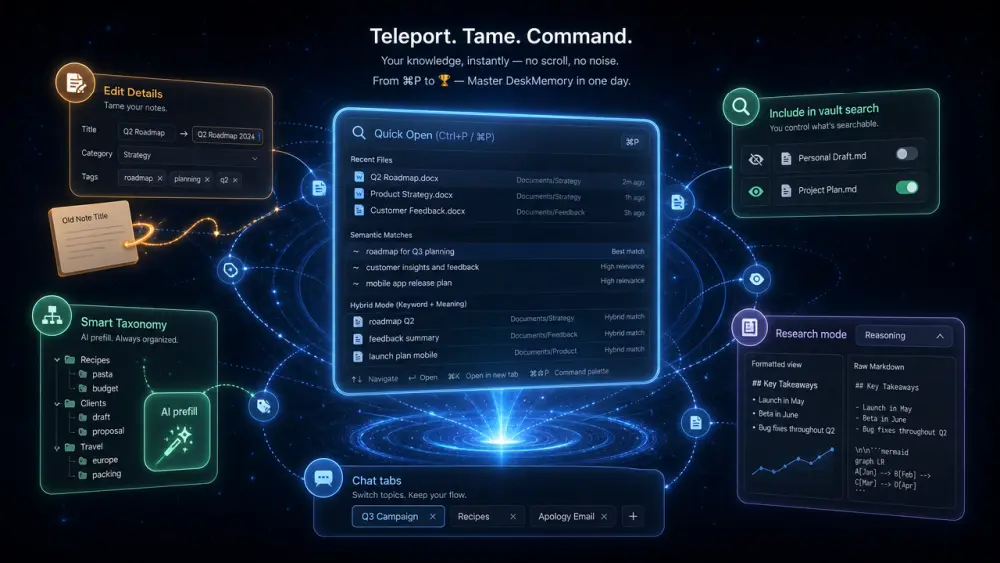
Hereâs what it can do right now: - Show recent files â no typing needed, the top of the list remembers where youâve been. Expand the âRecent filesâ chevron to browse up to a handful of paths. - Filter by file name â just like the sidebar filter, but faster. Type `proposal`, and any note with that word in its name lights up. - Go full meaning-based â start with `~` and the palette switches to semantic search. `~ client onboarding checklist` finds notes that are conceptually about that process, even if the file name says something else. - Hybrid mode â if you just type words *without* `~`, DeskMemory blends name matches with a few top semantic suggestions, marked clearly in the results. Best of both worlds, no special syntax needed.
Training habit: Use Quick Open at least three times today instead of clicking through the tree. By Friday, your hand will go to Ctrl+P automatically â and youâll save minutes every time you sit down to work.
Wow moment: A colleague asks for that old campaign analysis you did months ago. You type `~ campaign analysis 2025`, spot the note in the palette, hit Enter â five seconds, conversation saved.
2. âI pasted a file and now itâs a messâ â Meet Edit Details
You drag in a `.md` from another tool. Or you paste a rich text snippet from the web. The result: a note with no category, no tags, no proper title, and a cryptic filename like `download-12.md`. Until you tame it, the AI canât classify it properly, and you canât browse by category.
Rather than learning YAML front matter (those dashed lines at the top of a note), just use the Edit details⦠button that appears in the editor header.
- Click it. A popâup asks for title, type (note, master, etc.), category, date, and tags.
- Fill in what you know. If you leave the date blank, it defaults to today â no pressure.
- DeskMemory then writes (or updates) the tiny block at the top of the file, renames the file from the title, and moves it into its category folder (creating the folder if needed). Your note body stays untouched.
- The sidebar immediately updates. The AI now knows where it belongs.
Training exercise: Open any unclassified note from your ârootâ folder right now â the one with the weird name. Use Edit details to give it a title and category. Do one more tomorrow. In a week, your vault will feel organised without a single manual dragâandâdrop.
Wow moment: That pile of unsorted imports? After three sessions with Edit Details, your library suddenly has folders, tags, and a logic the AI genuinely uses.
3. Control What Search Sees (Without Deleting)
Not every note deserves to appear when you type `~`. Maybe itâs a template, a previous version, or your halfâbaked venting from a bad day. You want it in the vault, but you donât want it muddying your results.
On any note that already has front matter, the editor header shows a toggle: Include in vault search.
- Turn it off for reference files, old drafts, or personal diaries. The sidebar marks them with a little eyeâoff icon.
- Turn it on for anything you want the AI and semantic search to treat as âsource material.â
- Current master notes (like your brand guide or résumé) always stay searchable â the app knows theyâre too important to hide.
Training habit: After a big capture session (a dozen recipes, ten meeting notes), spend 30 seconds reviewing the list. Flick âInclude in vault searchâ off for the rawâimported versions, and keep it on for the polished ones youâd actually want the AI to reference.
Wow moment: Your semantic searches suddenly feel sharper â because the noise is gone, and the signal remains.
4. Build Your AI Toolbox (Taxonomy That Works Hard)
This is the quietest superpower in DeskMemory, and itâs pure âset it once, benefit forever.â
Under Settings â Chat Settings, you can define:
- Categories â `Recipes`, `Clients`, `Travel`, `Operations`⦠these are the buckets that show up in the Save dialog and in your treeâs folder structure.
- Tags â `pasta`, `clientâx`, `budget`, `draft` â flexible labels that the AI can later use to preâfill when you save a chat (with AI prefill enabled).
- Role presets â e.g., âstrategic consultant,â âprivate chef,â âHR policy writer.â These are fed to the AI as tone instructions when you create prompts and when you use a template.
- Output format presets â âemail,â âreport,â âblog post,â âitineraryâ â these shape how the AI structures its answers and how the Prompt Compiler packages them.
Training exercise: This week, add three categories and five tags that reflect your real work. Donât overthink â you can edit them later. Once theyâre in, every time you save a note, youâll see chips for those tags. The AI will also use this taxonomy to preâfill classifications (when AI prefill is on). Youâre basically teaching DeskMemory your vocabulary.
Wow moment: A month from now, you type â`~ pasta`â and every recipe is already there, preâtagged. The AI proposes tags like `vegetarian` automatically. It feels like the app grew along with you.
5. Chat Like a Pro: Multiple Threads, No Headaches
DeskMemoryâs chat isnât a single blank page â itâs a workspace with multiple simultaneous conversations, each one saved automatically and ready to pick up where you left off.
- The Open chats rail (left side, collapsible) holds every session. The active chat sits at the top; click any other to switch instantly.
- Each chat remembers its own settings â tone, web search preference, attached vault files, even the unmade draft you were typing. Close the app, reopen it, everything restores.
- Working on a proposal? Start that chat tab. While you wait for the AI to draft, switch to another tab and ask a quick question about recipes. Both streams keep running.
- When a chat is done, hit the à to close it. DeskMemory will nudge you to Save to vault first â giving that thread a permanent home.
Training habit: Create a new chat for each project or topic. Name the first user message clearly (âResearch for Q3 campaign,â âDraft apology email for guestâ). That label becomes the chatâs title in the rail, making it easy to pick up later.
Wow moment: You never again lose the brilliant thought you typed three chats ago â because every chat persists, and the composer drafts survive even a restart.
6. See What the AI Sees (Transparency Mode)
DeskMemory treats you like a coâpilot, not a passenger. Two features give you a window into the AIâs thinking:
Rich replies vs raw Markdown In any chat, you can toggle between Formatted view (clean, rendered responses) and Raw Markdown view (exactly what the model returned). Use this when you want to copy the source formatting, inspect a link target, or just satisfy your curiosity. Itâs also a gentle way to learn Markdown without pressure â you see the `bold` and `## headings` as you read.
The Reasoning block (Research mode) When you use the Research (deeper) AI mode, the modelâs intermediate reasoning appears in a collapsible block above the final answer. While streaming, it opens automatically; you can fold it away or copy it along with the answer. This is brilliant when youâre making a serious decision â you can see the âhowâ as well as the âwhat.â
Training tip: Switch a chat to âResearchâ and ask a question that has no single right answer: âCompare two vacation destinations.â Watch the reasoning unfold, then check the sources when web search is on. Youâll start to trust the AI more â and youâll spot when itâs interpreting, not just regurgitating.
Wow moment: Youâre not just getting an answer; youâre getting a glimpse of the process â and that makes you smarter about your own thinking.
The Takeaway
Mastering DeskMemory isnât about memorising commands; itâs about adopting a few small habits that compound over time. Use Quick Open to teleport. Tame your imports with Edit Details. Clean your search scope. Build your personal taxonomy. Treat chat tabs like workspaces. And peek under the AIâs hood now and then.
Each one feels tiny in the moment. But stack them together, and you stop being a user â you become the commander of your own knowledge.
Now go try one. Just one. Today.
*Start my free library â link*