
DeskMemory: A No‑Code Guide to Actually Useful Personal AI
31 May 2026
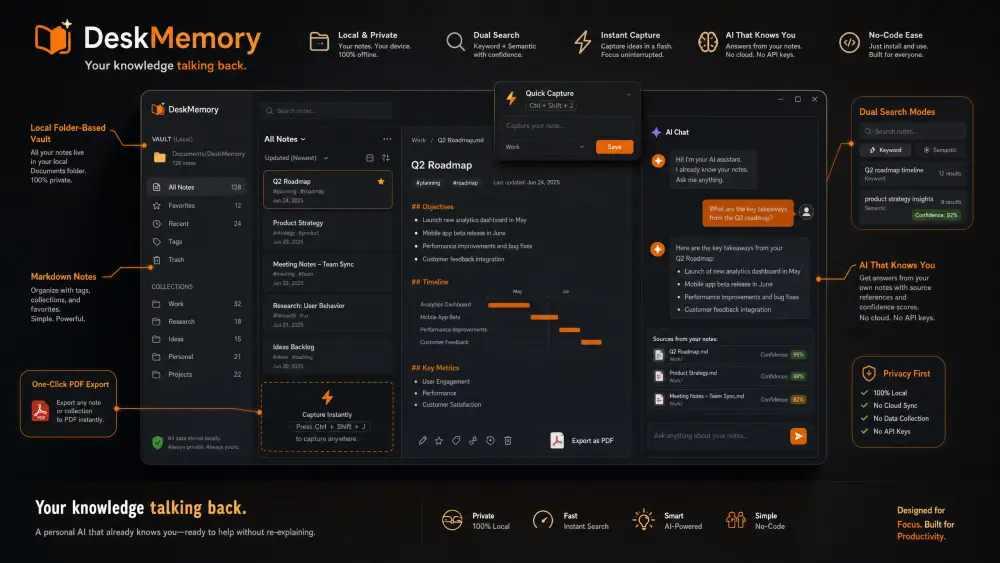
DeskMemory breaks that loop. It’s a desktop‑based knowledge vault that lives entirely on your computer, speaks plain text (even if you’ve never written a line of Markdown), and comes with an AI that’s already read every note you’ve saved. No coding. No API keys. No PhD in prompto
# DeskMemory: A NoâCode Guide to Actually Useful Personal AI
You know the loop:
1. You have a brilliant thought â creative, strategic, culinary â and you scribble it somewhere. 2. When you need it later, you dig through email, cloud folders, and that one sticky note ⦠only to copyâpaste everything into a chatbot that asks âHow can I help?â as if youâre strangers. 3. You reâexplain your world *again*.
:lucide-zap: DeskMemory breaks that loop. Itâs a desktopâbased knowledge vault that lives entirely on your computer, speaks plain text (even if youâve never written a line of Markdown), and comes with an AI thatâs already read every note youâve saved. No coding. No API keys. No PhD in promptology required.
Hereâs what awaits you â plus the âhowâ so you can start playing the moment you install it.
1. Your Library, Your Rules (with Zero Tech Overhead)
The big idea: DeskMemoryâs library is simply a folder of Markdown files on your own machine. You can back it up with anything you already trust (Dropbox, iCloud, Syncthing, or an external drive) â no walled garden.
What beginners need to know: - When you launch the app for the first time, it asks âWhere should your vault live?â â Choose the recommended Documents folder if you want to be up in seconds. - Youâll see a clean sidebar showing all your `.md` notes. - You never need to write any formatting codes; you just type, and the app handles the rest.
*Training angle:* Take 30 seconds now to decide where your library belongs. After that, every new note you create joins that cozy, unâcloudâlocked home.
Wow moment: Later, you can drop an existing Markdown library into that folder (from another tool or backup) and DeskMemory will adopt it instantly. Your knowledge moves with you.
2. Find Anything â By Name or By *Meaning*
Newâuser headache #1: âI know I wrote about that, but ⦠where?â
DeskMemory gives you two complementary search superpowers:
- Type words in the sidebar â filters file *names* that contain all those words. Fast, obvious.
- Prefix your query with `~` â switches to meaningâbased search, which hunts for ideas, not just keywords.
Try this exercise: Type `~ vacation planning` into the search box. Even if no file name matches, youâll see notes that are conceptually similar â travel ideas, packing lists, destination research from months ago. Recently updated notes get a slight boost, so your active projects surface first.
- Explanatory badges (high/medium/low confidence) help you learn what the engine thinks â a gentle training feedback loop built right in.
- Under Settings â File Settings you can tune the strictness from Conservative (tight) to Broad (more adventurous). Start on Balanced; youâll rarely need to touch it for everyday use.
Wow moment: Small vault or large, this search works on your machine, not a cloud server. Privacy, speed, and no internet lag.
3. Capture Like a Boss (No Context Lost)
Hereâs the feature that turns a âtoolâ into a habit:
- Global Quick Capture â press `Ctrl+Shift+Space` (Mac: `â+Shift+Space`), and a tiny window pops up even when youâre in another app. Type a title, a body, hit save; it lands in your vault root. â Training tip: Use this for showerâthought ideas, recipe scrolls, and meeting brainâdrops. It keeps friction near zero so your library grows organically.
- Paste from the web â toss in rich text from a browser, and DeskMemory converts it to clean Markdown (headings, links, lists) automatically. Your mom could do it.
Wow moment: After a week of casual captures, youâll have a personal search engine of your own thoughts â without a single manual formatting step.
4. AI That Already Knows Your Stuff (The Real Superpower)
Other chatbots treat you like a stranger. DeskMemoryâs AI reads your vault.
No setup wizard: Sign in with a DeskMemory account (email + password). Thatâs it. No API keys, no âprovide your OpenAI tokenâ nightmares.
- Two modes: Fast (for everyday answers) and Research (deeper reasoning, with a collapsible âhow I got hereâ box).
- Vault context â every time you send a message, the app automatically attaches your most relevant notes as *systemâside* context (they donât clutter your message box). The AI answers as if itâs already studied your material.
- Attachment tweaking: You can manually select or deselect files before sending â learn this early and youâll never waste tokens on irrelevant notes.
Try this training prompt after importing a handful of notes: > âI want to write a client proposal â pull from my past project summaries and draft an outline in a friendly tone.â
If you enable Web search (Auto/Always), the AI can also pull in fresh data from the internet, citing sources clearly. Set it to Auto when youâre still learning; the model decides if external facts are needed.
Wow moment: The AI doesnât replace your thinking; it amplifies the thinking youâve already put into your vault. And when a chat turns into something worth keeping, hit Save to vault⦠â the thread becomes a properly tagged, searchable note. (After enough practice, you can turn on Silent save and bypass the dialog entirely â expert mode unlocked.)
5. Ship Output Like a Pro (One Click to PDF)
This is the feature that makes you look like a documentation ninja:
1. Edit your note (a trip itinerary, a recipe collection, a team guideline). 2. Click Preview â Save PDF as⦠3. Choose where to save. Boom â a real PDF with selectable text, clean margins, and printâfriendly layout.
No extra export step. No formatting anxiety. Your darkâthemed app even builds the PDF in a light, readable style â ready to share with clients, family, or your future self.
Training angle: After youâve compiled a few related notes using the Prompt Compiler (see next), always export the result as a PDF. That singleâfile package becomes your portable deliverable.
6. For the Overachievers: The Prompt Compiler
When a search surfaces *Top relevant matches*, you can select multiples, then click Create prompt.
- A short wizard walks you through confirming categories/tags, setting a role (e.g., âmarketing strategistâ), and an output format (email, report, blog post).
- One click copies everything to your clipboard (or drops it into a chat session).
- You can optionally save the compiled prompt as a new vault note for reuse.
Think of it as âadvanced prompt engineering without the jargon.â It turns scattered research into a readyâtoâsend guide in seconds.
Wow moment: Use this for client briefs, project proposals, or team handoffs â and know that your AI has already been directed by the material you curated.
The OneâSentence Pitch for NonâTechnical Humans
*âDeskMemory is a desktop app that turns your folder of notes into a personal AI partner â no code, no cloud lockâin, no reâexplaining. Just capture, ask, and ship.â*
Ready to Try It?
Download the app (Windows, Mac, Linux), create your first library, and paste in a few test notes. Then ask the AI: âWhatâs a better way to organise my recipes?â The answer will come from *your* materials. That moment â your own knowledge talking back â is the one that sticks.
*Start My Free Library â link*
*P.S. DeskMemoryâs free tier gives you a generous message allowance, and you can buy âmessage packsâ that never expire. No expiry date on your curiosity.*